Wireshark
-
Wiresharkis a free and open-source network traffic analyzer much like tcpdump but with a graphical interface -
Wireshark is multi-platform and capable of capturing live data off many different interface types:
- WiFi
- USB
- Bluetooth
-
Can save the traffic to several different formats
Capabilities
- Ethernet, IEEE 802.11, PPP/HDLC, ATM, Bluetooth, USB, Token Ring, Frame Relay, FDDI
- Decryption capabilities for IPSec, ISAKMP, Kerberos, SNMPv3, SSL/TLS, WEP, and WPA/WPA2
Alternative: tcpflow, tshark, termshark
Statistics
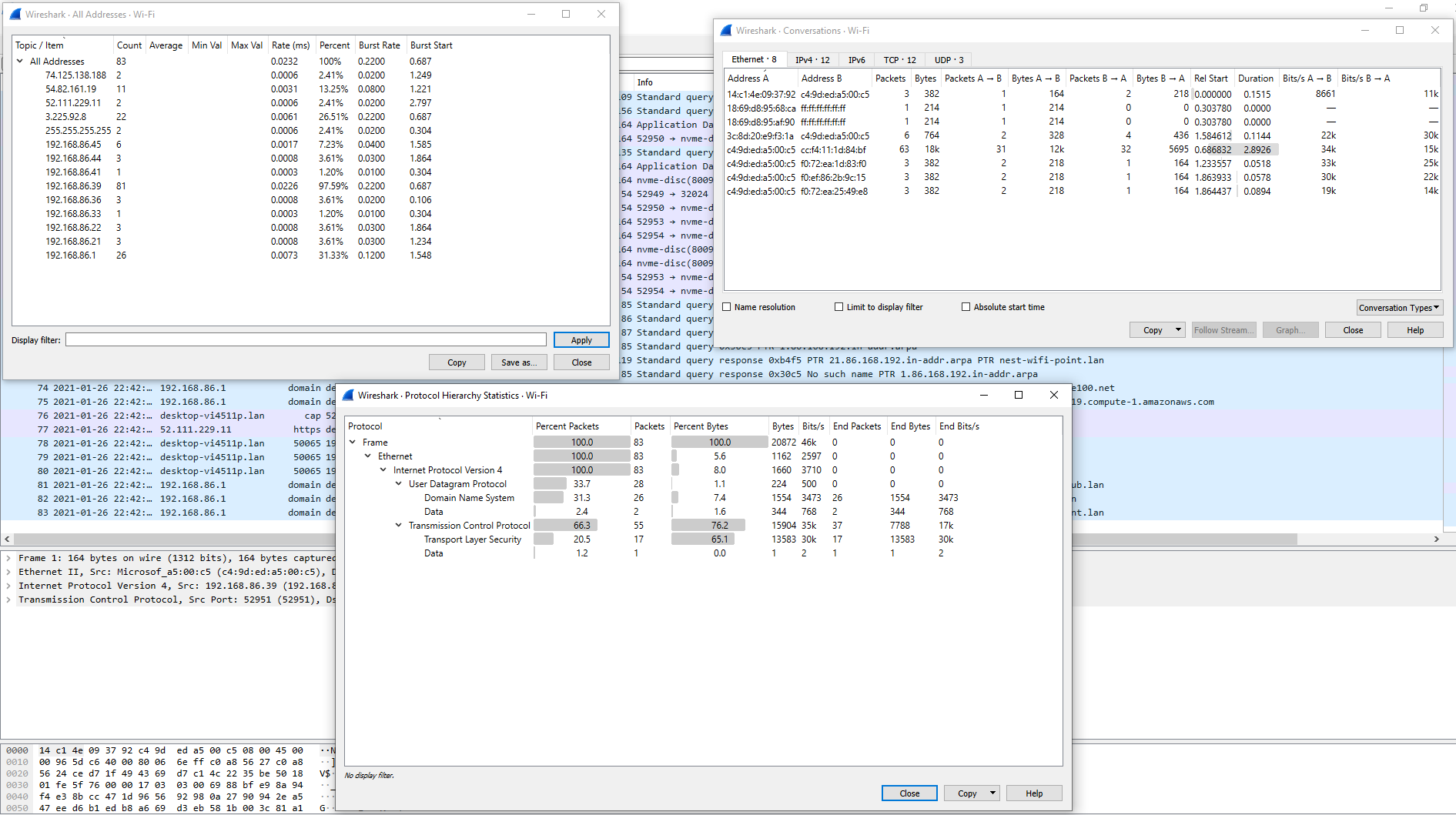
The Statistics and Analyze Tabs
- The Statistics and Analyze tabs can provide us with great insight into the data we are examining
- It can show us everything from the top talkers in our environment to specific conversations and even breakdown by IP and protocol.
Statistics Tab
Analyze
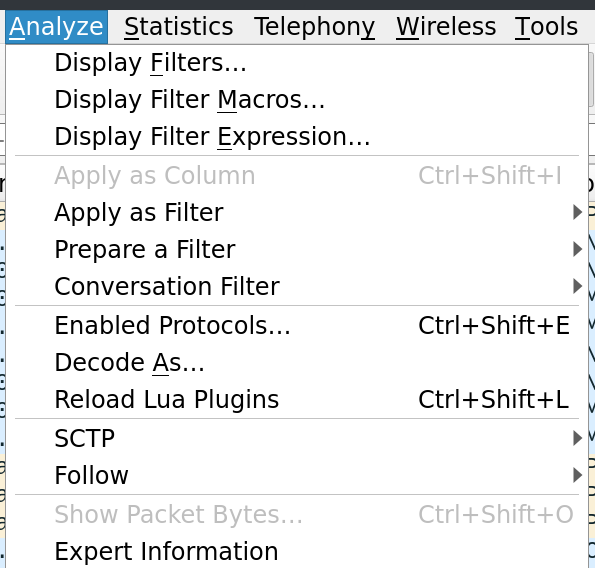
- From the Analyze tab
- we can utilize plugins that allow us to do things such as
- following TCP streams
- filter on conversation types
- prepare new packet filters and examine the expert info Wireshark generates about the traffic
- we can utilize plugins that allow us to do things such as
Analyze Tab
Following TCP Streams
- Wireshark can stitch TCP packets back together to recreate the entire stream in a readable format
- This ability also allows us to pull data (
images, files, etc.) out of the capture - This works for almost any protocol that utilizes TCP as a transport mechanism.
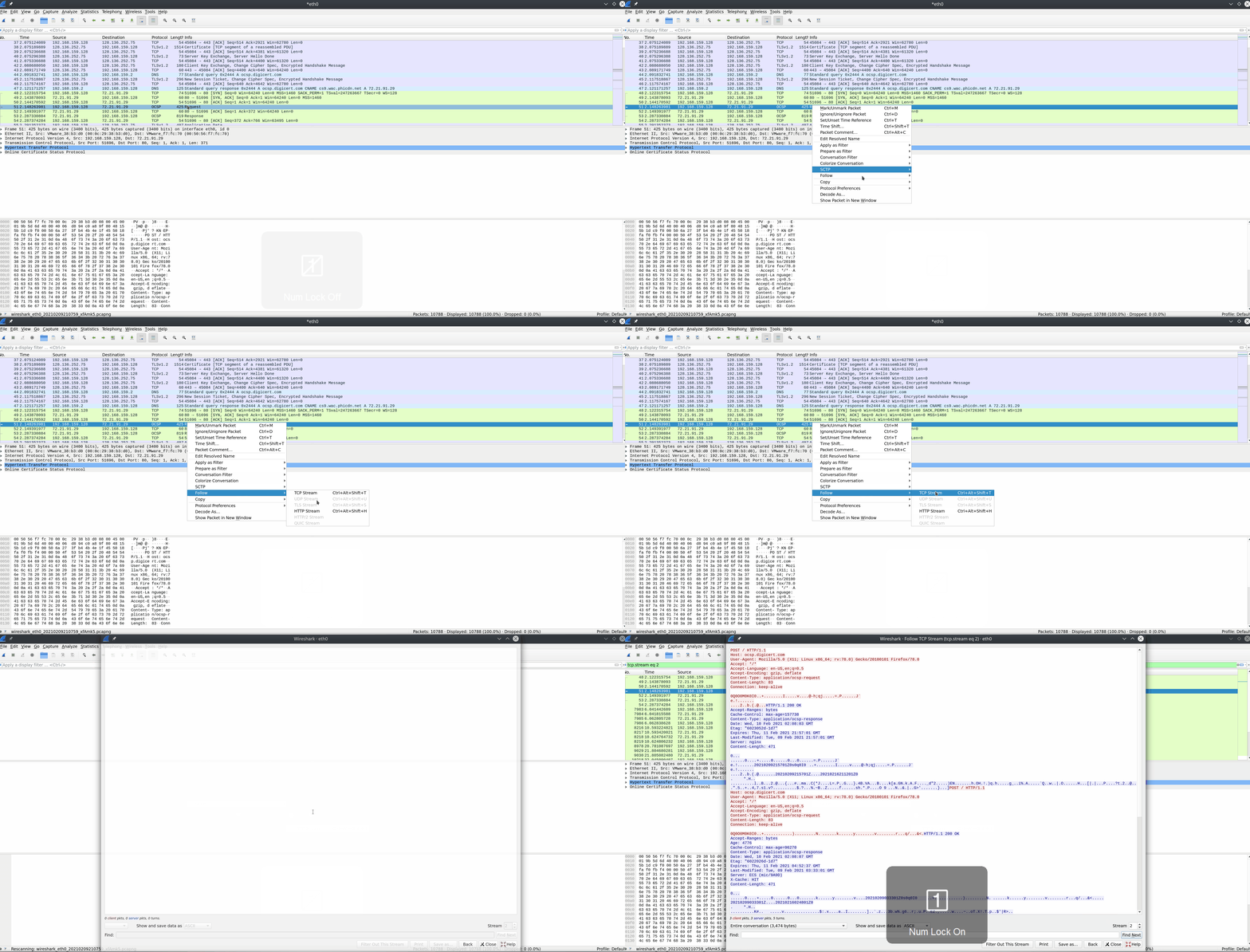
To utilize this feature:
- right-click on a packet from the stream we wish to recreate.
- select follow → TCP
- this will open a new window with the stream stitched back together. From here, we can see the entire conversation.
Follow A Stream Via GUI
Alternatively, we can utilize the filter tcp.stream eq # to find and track conversations captured in the pcap file.
Filter For A Specific TCP Stream
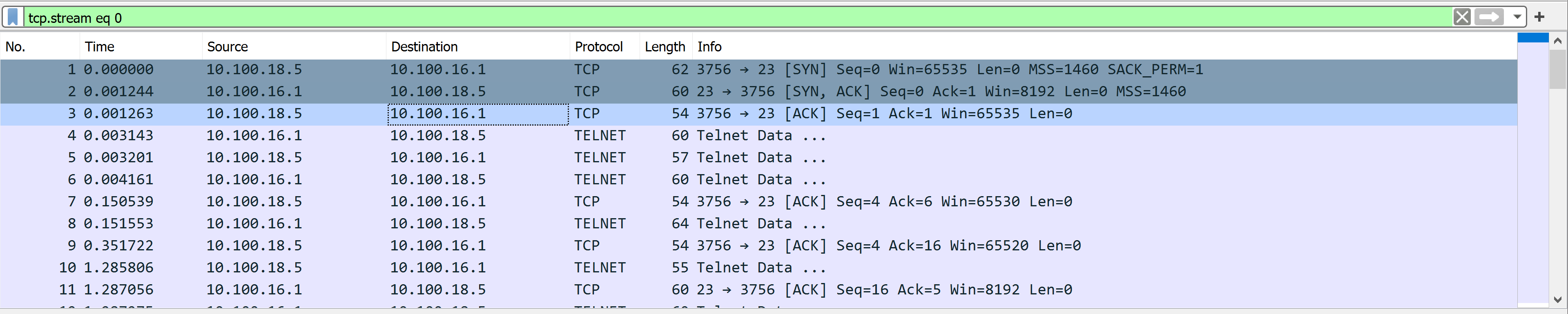
- Notice that the first three packets in the image above have a full TCP handshake
- Following those packets, we can see the stream transferring data
- We have cleared anything not related out of view by utilizing the filter, and we now can see the conversation in order.
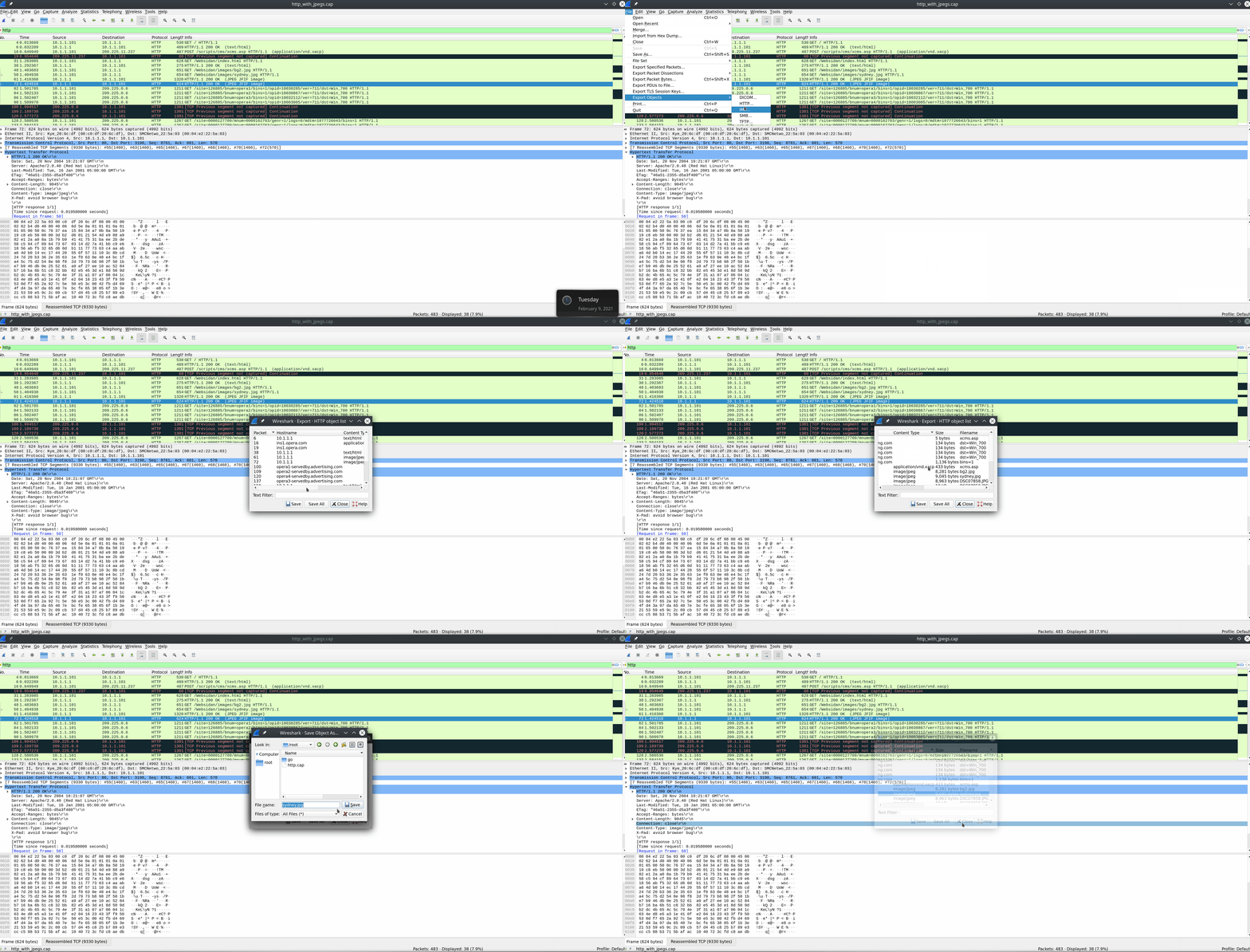
To extract files from a stream:
- stop your capture.
- Select the File radial → Export → , then select the protocol format to extract from.
- (DICOM, HTTP, SMB, etc.)
Extract Files From The GUI
- Another exciting way to grab data out of the PCAP file comes from FTP
- The File Transfer Protocol moves data between a server and host to pull it out of the raw bytes and reconstruct the file (image, text documents, etc.)
- FTP utilizes TCP as its transport protocol and uses ports
20 & 21to function - TCP port 20 is used to transfer data between the server and host, while port 21 is used as the FTP control port
- Any commands such as login, listing files, and issuing download or uploads happen over this port